GB Manual cPad V1.4 Manual
Table of Contents
- 1. Introduction
- 2. Configuration
- 3. Configuration of the Application
- 4. Usage
- 5. Specifications
The cPad terminal is designed to control access to a print device, a copier or a multifunction (MFP). The cPad is a network terminal, it communicates with the Gespage print server and control access to the copying equipment.
The installation of a cPad is composed of a configuration of the network parameters and a connection with the copying equipment. The different functioning modes are defined from the server web interface.
Gespage is a management application of one or several print servers and is designed to monitor and control the use of your print equipments, as printers, photocopiers or multifunction (MFP). The Gespage application must be installed on a print server, that is to say, a server hosting print queues and sharing them on the network.
The Gespage web architecture allows the administrator to access to the administration interface over the network from a web browser.
Required configuration
This manual describes the installation of a cPad terminal fitted with thesoftware supporting Gespage.
The cPad is powered by an external 24VDC 1A.
Boot steps are:
o Black screen for about 10 seconds
o White screen with the Cartadis logo for about 1 minute and 30 seconds
o Completely white screen for 5 seconds followed by a beep warning displaying a progress bar for about 10 seconds. During the progression of the display, you can enter a code (called Zcode) to access to the integrated configuration menu. Z-Code is a finger touch on each corner of the cPad screen in the following order: top left, top right, bottom left and bottom right.
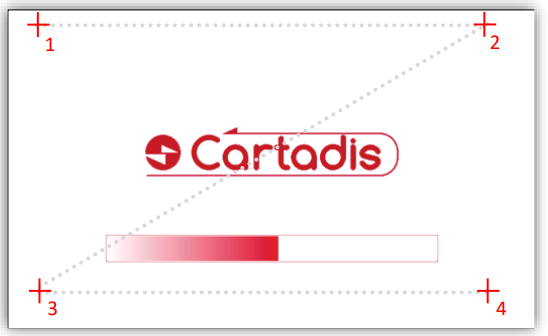
A code is requested: 23468 (by default)
The following screen comes to display:
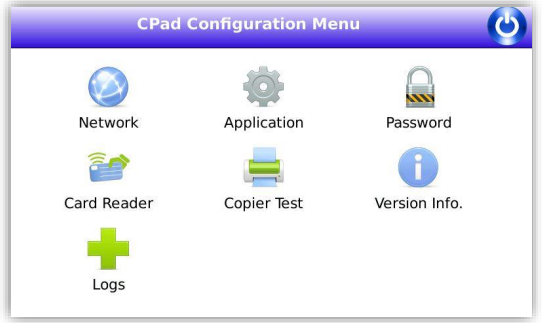
The configuration menu allows you to initialize the network parameters:
• You can choose DHCP if you have a DHCP service on your network or you can set static IP settings.
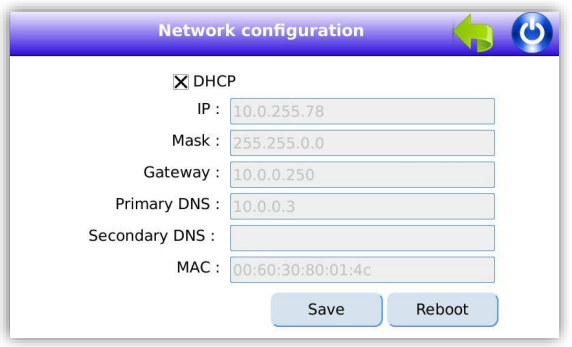
If you change settings, you must save the change by pressing the "Save" button then press "Reboot" to close the setup menu and start the cPad application.
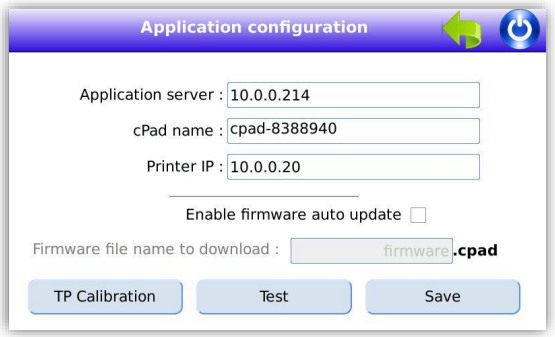
The "Application server" field must be initialized with the IP address of your Gespage server.
You can enter a static IP address or a DNS name (if your Gespage server is registered to a DNS).
The "cPad name" field allows you to enter a comment for terminal identification.
The "Printer IP" field is used in the case of a SNMP connection. The IP address of the copier is required.
The auto update of the firmware may be enabled or disabled for updating the cPad after a server update.
The "Test" button enables the cPad connection to the server to be tested.
Should you modify a parameter, save the modification by pressing the « Save » button.
2.4 Updating from the Gespage server
Copy the file of the form xxxx.cpad on the Gespage server in the folder (from installation path): \server\resources\medias\cpad\firmware.cpad
Folders may be created to obtain the above path. Rename the file " xxx.cpad " as " firmware.cpad ".
ATTENTION! The cPad automatic update must be enabled for downloading the firmware.
Please ensure that your cPad is updated with the latest firmware version by getting the firmware from the Cartadis FTP server:
FTP IP = 82.165.150.35
Login/Password = cguest/cartadis10
Folder = gespageV6/cPad_Firmwares
(Download with an FTP client as FileZilla is recommended).
Copy the file of the form xxxx.cpad at the root of a USB key.
Connect the USB key when the Setup application or Gespage application is running, after 10 seconds a window will open asking you to confirm the update.
Remove the USB key after about one minute when the white screen with the Cartadis logo is displayed again.
2.6 Calibration of the Touch screen
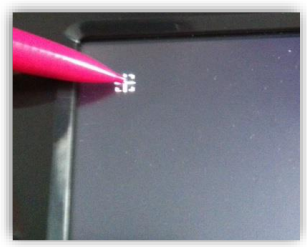
Press the "TP Calibration" button for calibrating the touch screen then use the tip of a pencil or similar instrument (no scissors or knives) as shown on the picture below and touch each pattern displayed on the screen. The calibration screen will close automatically after the fifth calibration point and restart the cPad application.
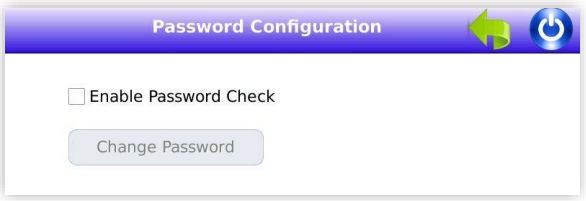
The password of the configuration menu is modified or disabled from this menu (23468 by default)
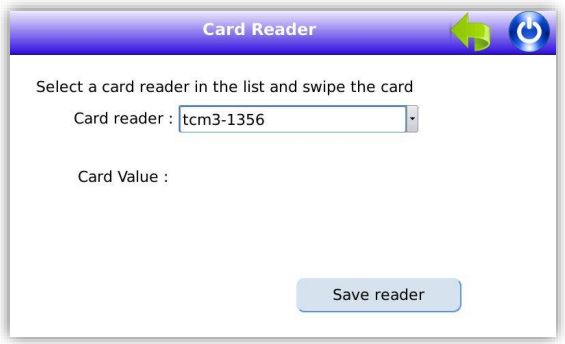
By selecting the "Card reader" button, you access a list of card readers supported by the cPad. After having connected your card reader to the USB or serial port, you can select its type from the scrolling list.
For testing the operation, you can present a card to the reader, the card number must be displayed.
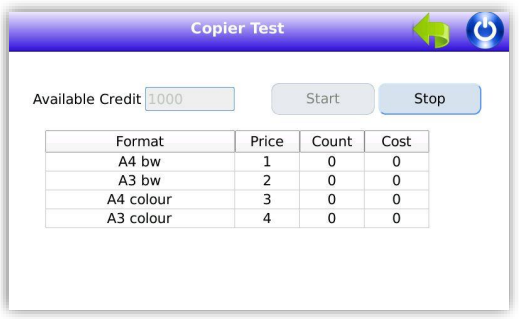
The connection to the copier is carried out by using a specific cable to each model of copier. Please contact Cartadis technical service to get the cable reference adapted to your copier.
By selecting "Copier" button, you can test the connection with the copier. In this mode, you can press the "Start" button to unlock the copier (or MFP) then, the "Stop" button to stop it. If you press "Start" then you can test and check that copies counted are copies made for the different formats.
This "offline" test is very useful when the connection to the server is not yet available and we want to confirm the physical connection to the copier (or MFP) is OK.
2.10 « Firmware » software version
When the "Firmware" tab is selected, you have access to cPad software versions.
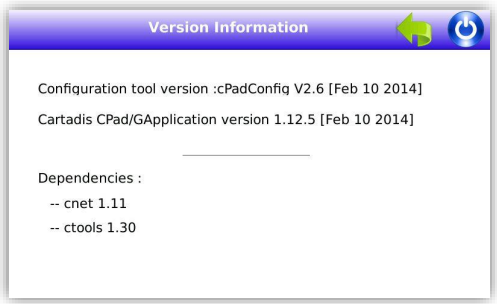 The cPad can be updated by using a USB key or by downloads from the Gespage server.
When the "Log" tab is selected, you have access to log files locally stored into the cPad.
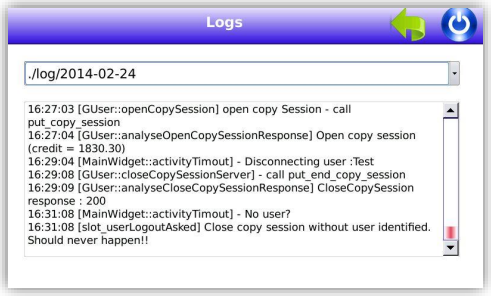
These files are useful for diagnostic helps in case of problems.
3. Configuration of the application
Once the configuration of network parameters is done, cPad is ready for use. Its behaviour is largely customizable according to the settings defined on the Gespage server.
These parameters enable to define:
• The method of users’ authentication (login, password, card ...).
• The type of equipment under control: printer, copier or MFP.
• The type of connection interface between the cPad and the equipment under control, and other timers.
• The type of card reader, and any filters applied to the serial numbers of cards.
After the first power-up, the cPad terminal automatically registers itself into the Gespage server (an option on the server can inhibit this behaviour) with the name cpad_xxxx, where xxxx represents the serial number that is indicated below the cPad housing. On the server, you can view the list of registered cPad by selecting the "Printers / Terminals / Terminal List" tab and then selecting the “cPad” tab.
3.1 Properties common to all cPads
All cPad installed on a server Gespage share common properties. These are accessible from the menu « Printers / Terminals / General configuration / cPad configuration».
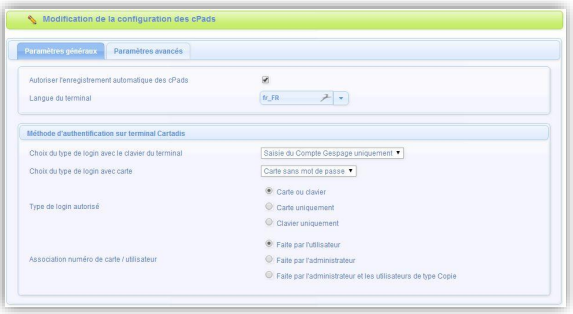
Allow cPads to self-register
1. Checked: At power-on, the cPad records itself if not already registered. The cPad serial number is automatically filled.
2. Unchecked: cPad must be added manually using the menu “Printers / Terminals / Add terminal / Add cPad”.
Device locale
This parameter defines the language and location parameters of cPad, we generally use "en_US" for English.
Choosing the type of login with the cPad virtual keyboard
1. Input of account only
2. Input of account and password
When creating the user account, Gespage stores the source of creation (Gespage, LDAP x or y), then performs an authentication request from the source directory.
3. Input of the print code
Identification by cards
1. Card without password
2. Card with password
3. Card with PIN
Allowed logins
1. Card and keyboard
2. Card only
3. Keyboard only
Association card ID to user
At the first swipe of a user card, and if the card number is not known by Gespage, a method of association of the card must be defined. It allows you to configure the user card number in the Gespage user account. This association is only done at the first card insertion.
1. Done by the users
When a user will use an unknown card, he will have the possibility of entering a print code on the card reader to associate his card number with his Gespage account. The print code is defined by the field « print code » in the user’s properties. The self-association of the card will be required only once during the card life time. By default, the card number is stored in the first blank field « card number 1 » or « card number 2 » of the user. If these 2 fields are not blank, the field « card number 1 » is then overwritten by the number of the new card. The registration field may be forced via the Gespage advanced settings registry.
2. Done by the administrator
All card numbers of users have to first be configured in the field Card number 1 or Card number 2 in Gespage. The initialization can be carried out by the administrator or by the LDAP synchronization mechanism (refer to §10.1.2).
3. Done by administrator and Copy type accounts
The users of the Copy type accounts can associate their card for print release. Standard user cards should be configured at the server level.
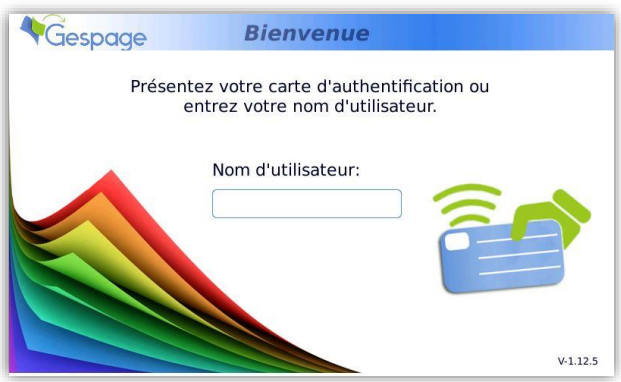
Example of cPad welcome screen, with login by card or user identification by login/password.
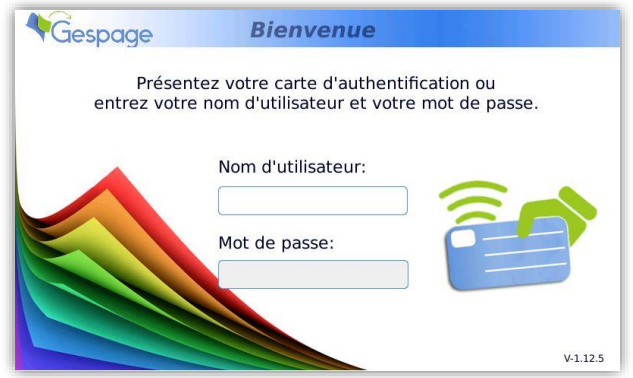
Touching with your finger a zone of entry, will automatically bring up the virtual keyboard as follows:
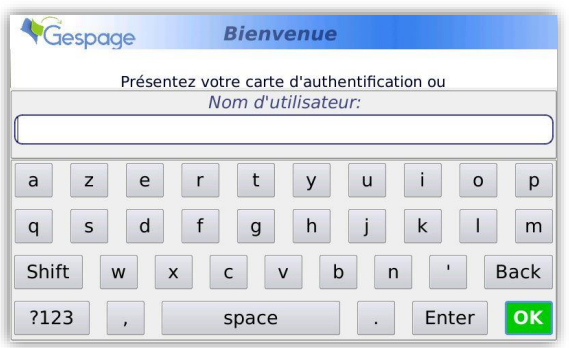
Example of cPad welcome screen with: Identification by entering the user name, or by approaching a card.
3.2 Properties associated to each cPad
Into the list of cPad of the Gespage server, you can configure cPad parameters by selecting the hyperlink with the name of the cPad you wish to view or modify: “Terminal\List of terminals\cPad\cPad name”
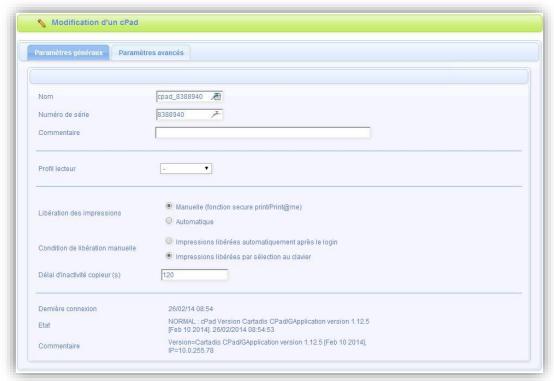
Name
Cpad name in Gespage. This name is only used to help managing the cPad in the web interface.
Serial number
This is the cPad serial number.
This number is automatically stored after self-recording. If it is manually added, you must copy the serial number of the cPad (available on a sticker under the cPad).
ATTENTION! For a proper management of cPad, this number must be filled up.
Comments
cPad comments in Gespage. This comment is only used to help in the cPad managing in the web interface.
Reader profile
Name of a reader profile associated with the card reader.
The reader profile is an advanced setting, useful when non standard card readers are connected or when card numbers stored into Gespage doesn’t get the standard format.
Print job release
Specifies whether the prints are blocked at MFP destination until the user doesn’t identify.
1. Manually (function Print2me)
The user must always pass the card to retrieve his documents. This configuration has to be chosen for getting secure printings.
2. Automatically
The documents are printed upon submission if the user gets a sufficient credit, they are nevertheless counted.
Manual releasing condition
Indicates if the prints are all automatically released or if the user may select those he wishes to release.
1. Automatic (All jobs are automatically released after user login)
After the user identification, all his pending jobs will be released.
2. Manual (Job are released after a keyboard selection)
After the user’s identification, a scrolling list shows to the user all his pending jobs and offers him the possibility to release them.
Copier idle timeout (s)
Maximum time (in seconds) for the automatic closing of a session after the last copier pulse.
This menu also allows you to view the latest cPad connection information.
3.3 Advanced settings associated with each cPad
CPad terminals can store parameters dynamically on the Gespage server. The web interface enables you to view, modify or create these parameters. With cPad software version V1 parameters are:
1. screen-saver-level1: 300
300 is the default value, it represents the number of seconds of inactivity after which the screen light intensity decreases for saving power.
2. screen-saver-level2: 3600
3600 is the default value, it represents the number of seconds of inactivity after which the screen turns off for saving power.
3. reader-type: tcm3-1356
represents the type of card reader connected to the cPad. Example: tcm3-1356; tcm3-125; tcm2-usb; tcmag1-usb. Please contact the support for getting a list of the various readers.
4. reader2-type: « card reader type »
represents the type of card reader connected to the 2nd cPad USB port in case of 2 readers.
5. polling-timeout: 180
180 isthe default value, all the "polling-timeout" seconds, cPad queries the server for checking if the operating parameters have changed or if a new firmware version is available.
6. reboot-time: 3.00
It is recommended that the cPad restarts once every 24 hours in order to optimize the organization of its memory and to obtain the fastest response time possible. The default value 3.00 means a restart around 3 am every day. Beware, cPad ignores minutes in this parameter, a random delay is applied for rebooting within the configured hour.
7. activity_search_force_numeric_kbd: 0
If this parameter is 1, it automatically activates the keyboard display in numeric format for activity research.
8. password_force_numeric_kbd:0
If this parameter is 1, it automatically activates the keyboard display in numeric format for entering the password.
9. printcode_force_numeric_kbd: 0
If this parameter is 1, it automatically activates the keyboard display in numeric format for entering the print code.
10. username_force_numeric_kbd: 30
If this parameter is 1, it automatically activates the keyboard display in numeric format for entering the user’s name.
11. list-page-size: 30
30 is the default value, it represents the number of jobs displayed per page.
12. MFP_interface: parallel
It is the name of the management driver of the copier interface:
● parallel: it is the default value, it represents the copier interface on a wide range of copiers / MFPs.
● Konica minolta: A Konica copier connected to the Serial Vendor Mode 2 interface.
● there are other drivers specifically for SNMP interfacing. Please contact the support for getting the name of the driver matching your configuration.
13. jobcode-request: 0
This parameter is used to force the selection of an activity in copy mode.
14. firmware_autoupdate_enabled: 1
enables the automatic update of the firmware to be enabled or disabled.
15. firmware_autoupdate_filename: firmware.cpad
enables the name of the update file to be specified on the server to be found by the cPad and for its update.
3.4 Properties associated with each user
On the server, from the list of users, some parameters can be set to define whether the user can authenticate as an operator or not.
The operator can authenticate on the cPad to release the prints of other users.
Therefore, select the desired user from "Accounts / User List".
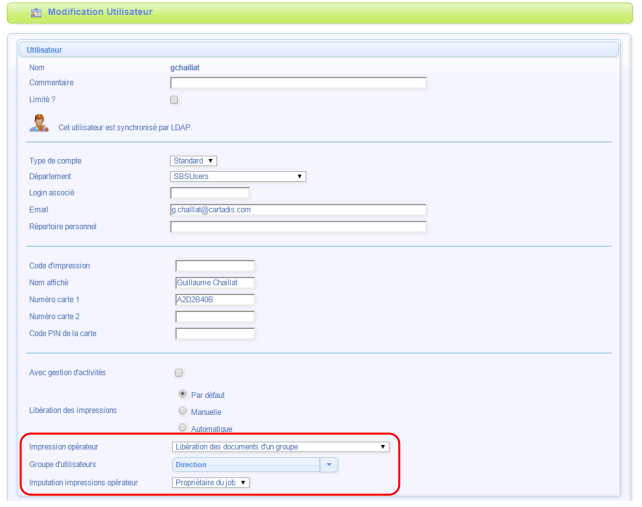
Operator printing
This option allows the user to release the print of another user.
None: the user will only release his own prints.
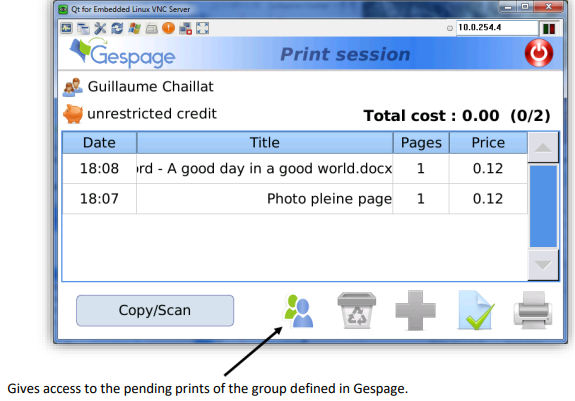
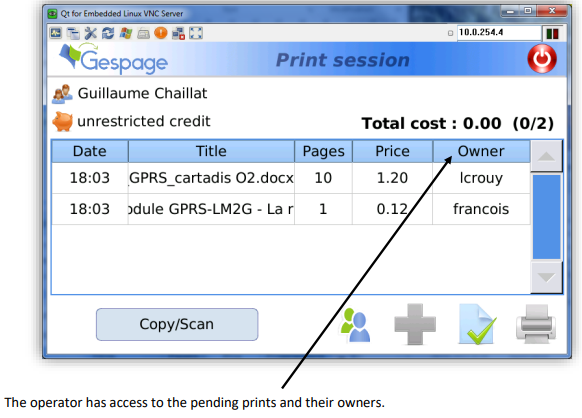
Group job release: the user will release the prints of a group of users specified.
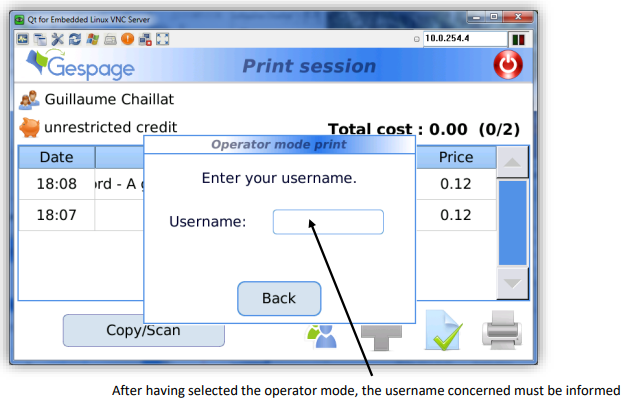
User job release after entering user name: the user will release the prints of all users after entering their names on the management terminal.
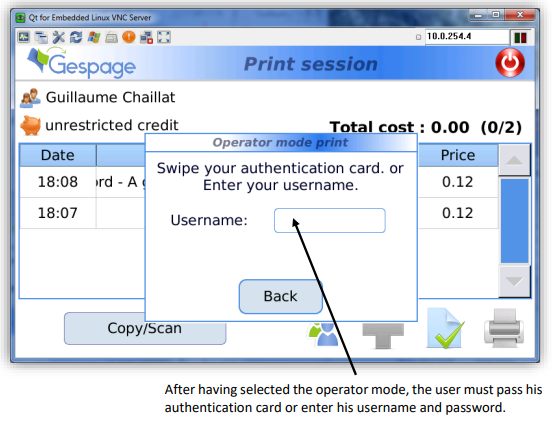
User job release after authenticating user: the user will release the prints of all users after they authenticated (login, login / password, card according to the terminal configuration).
Account to debit (if “operator printing” is not no)
Operator: the print will be deducted from the operator credit.
Job’s owner: the print will be deducted from the credit of the user who sent the print.
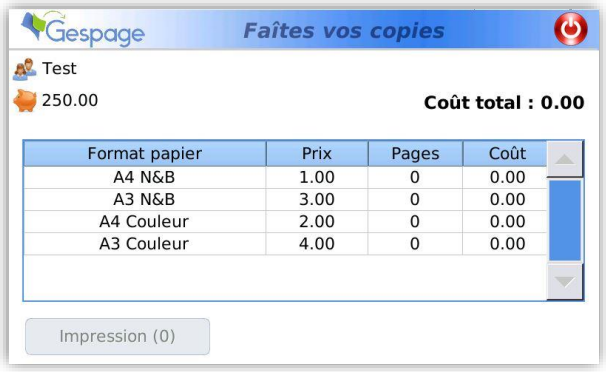
The cPad switches in “copy” mode immediately after the authentication step, if no document is pending for the user. In cases of pending documents for this user, cPad will be switched initially in the “print” mode.
The following screen shows pending documents ready to be released.
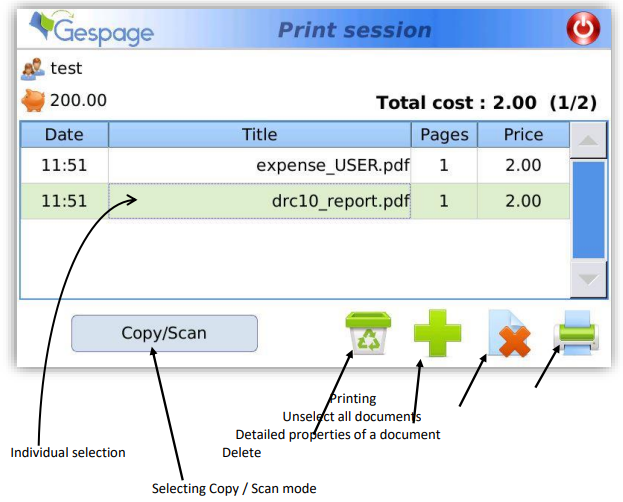
The release of one or several documents is done by selecting the documents and then pressing the printer icon. After the selection, it’s also possible to delete one or several documents by pressing the trash icon.
You can leave the print mode to make copies by pressing the button "Copy / Scan".
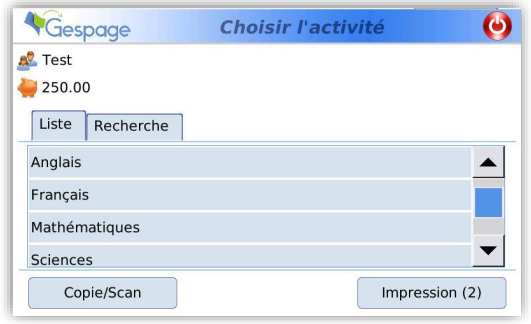
In case the user is declared as having to enter a job for charging, the following screen is displayed before switching to Copy mode. This screen also appears if documents are pending and if they were not charged to a job at the time of submission. Thisis usually the case if the Gespage Popup application has not been installed on the user PC.
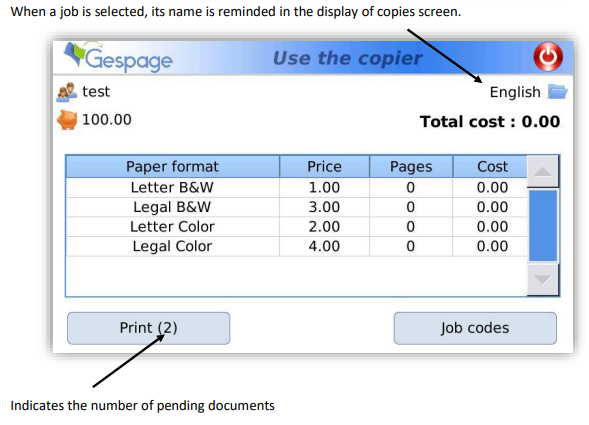
The job previously selected still appears in bold at the top of the list. The tab "Search" enables to reduce the list by filtering job code containing a given character string.
The “Operator” can open his session on the cPad and release the jobs from different users.
4.2.1 Release the documents of a group
4.2.2 Release the documents of a user after entry of a name
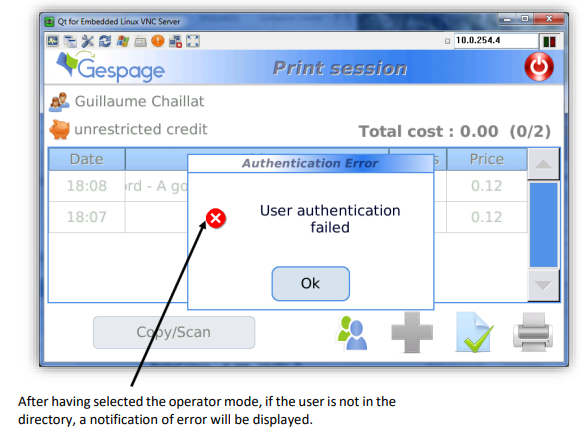
4.2.3 Release the documents of a user after authentication
- Power supply: 24V 1A.
- Dimensions of the reader (mm): 188 L / 128 W / 37 D.
- Weight: 540g.
- Compatibility with RFID, barcode or magnetic ISO cards via the optional TCM3, TCMAG1-USB and TCBK01 readers.
- 7 inches screen; resolution 800*480.
- 16 million colours.
- Intuitive user interface.
- CPU: 400 MHz.
- RAM: 64 Mb.
- Flah NAND: 256Mb.
Was this article helpful?
That’s Great!
Thank you for your feedback
Sorry! We couldn't be helpful
Thank you for your feedback
Feedback sent
We appreciate your effort and will try to fix the article