My first steps with PrinterKiosk Pro
Overview
PrinterKiosk PRO (“Pro space”) is the SaaS management portal for merchants/operators of a PrinterKiosk printing point. It allows you to track activity and billing.
1. Login
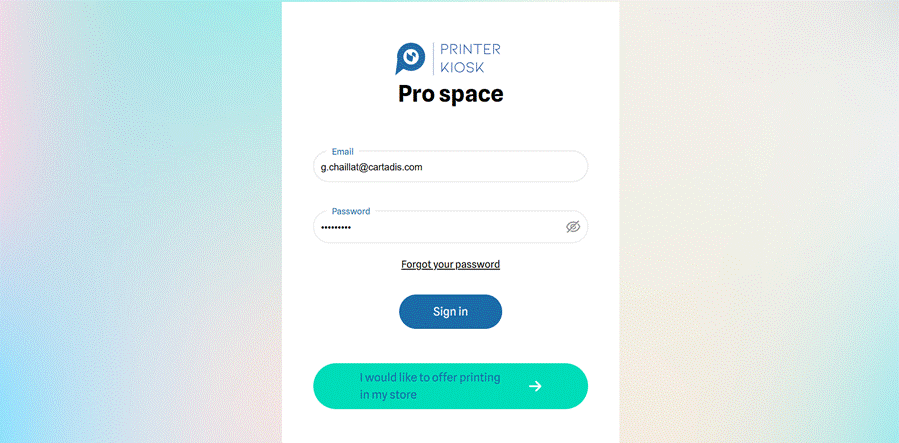
Login screen
Access: sign in with the e-mail / password provided by Cartadis Customer Support. A “Forgot your password” link allows you to reset it.
2. Dashboard
The dashboard gives a summary view of the activity of a selected CMprint device.
Navigation is via a fixed left-hand menu (collapsible using the “<” arrow at the top), with 5 sections: Dashboard, Printers, Transactions, Reports, Documentation. At the top right of every screen: the language selector and the user account menu.
2.1 Filters and key indicators
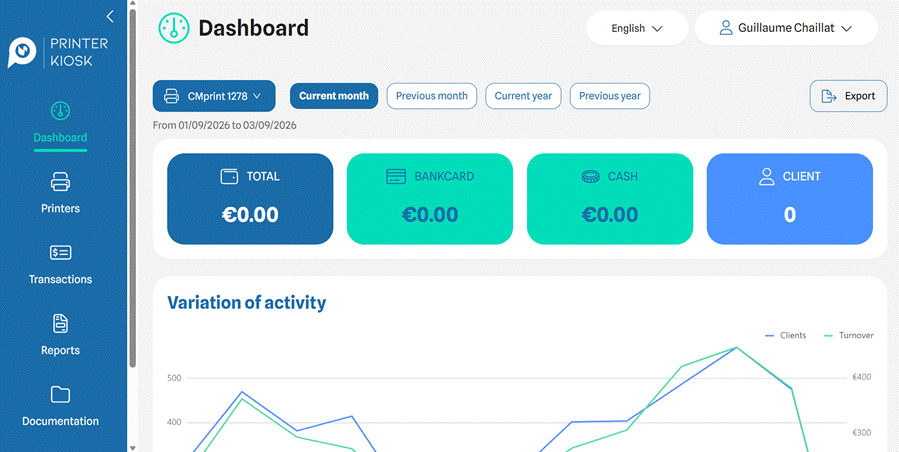
Dashboard
Filters available at the top of the screen:
- Device selector (CMprint)
- Predefined periods as buttons: Current month / Previous month / Current year / Previous year
- The date range actually applied is shown just below (From XX/XX/XXXX to XX/XX/XXXX)
- Export button at the top right to download the data for the period
The 4 summary cards:
Card | Content |
Total | Total revenue accumulated over the selected period |
Bankcard | Amount collected by bank card over the period |
Cash | Amount collected in cash over the period |
Client | Number of purchases over the period |
2.2 “Variation of activity” chart
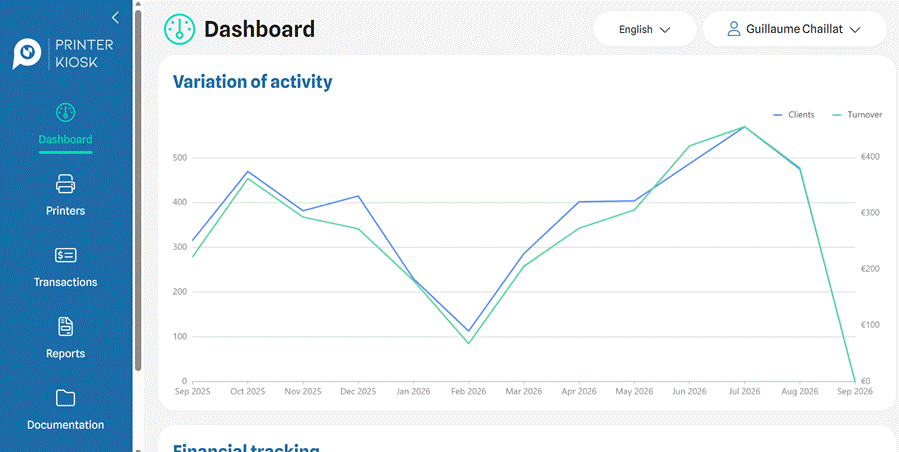
12-month rolling activity chart
Combined chart with a dual axis:
- Clients (blue line, left axis — number of clients)
- Turnover / revenue (green line, right axis — amount in euros)
The period covered is a 12-month rolling window (here Sep 2025 → Sep 2026).
2.3 “Financial tracking” block
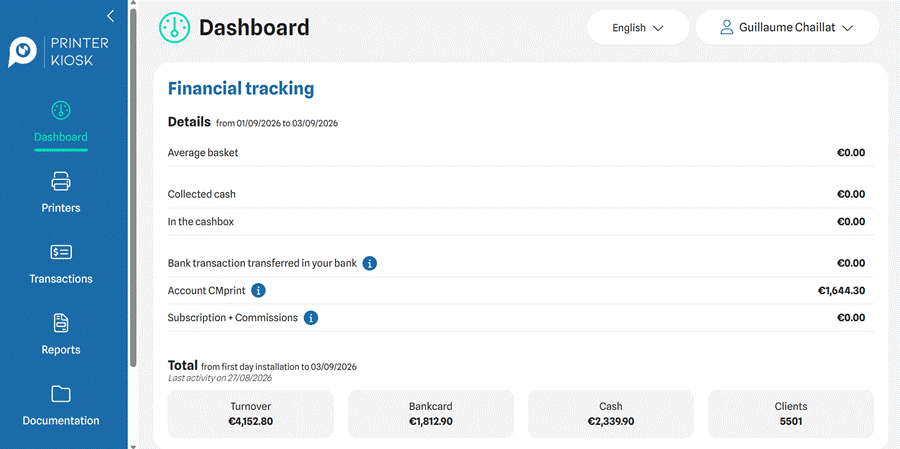
Financial tracking detail
This block details, for the selected period:
Line | Meaning |
Average basket | Average basket per transaction over the period |
Collected cash | Cash collected by users over the period |
In the cashbox | Balance currently present in the device’s physical cashbox (cash not yet collected) |
Bank transaction transferred in your bank | Amount of card transactions already transferred to the partner’s bank account |
Account CMprint | Balance available in the CMprint account: amounts collected (card + cash) but not yet paid out to the partner |
Subscription + Commissions | Subscription fees and commissions deducted over the period |
The ⓘ icons open an additional explanatory tooltip for each line (content not detailed in the screenshots provided — to be documented if needed).
At the bottom, a Total box accumulates the amounts since the device’s first day of installation up to the current date: Turnover / Bankcard / Cash / Clients, with the date of the last recorded activity.
3. Printers
3.1 Device list
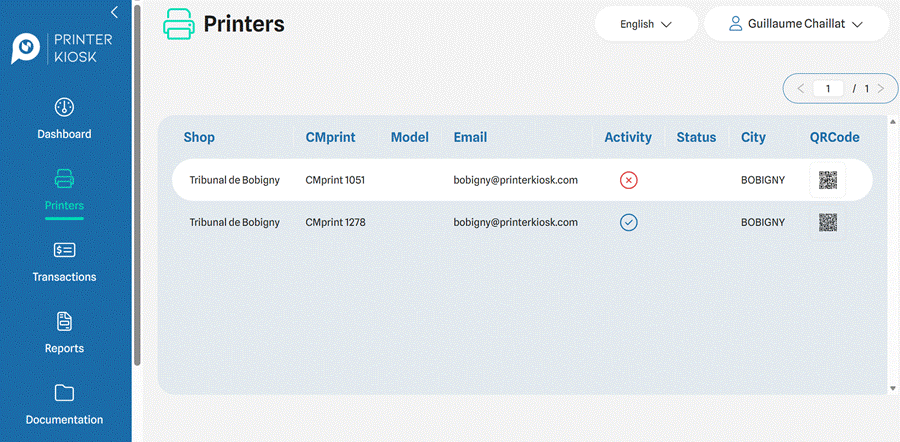
List of printers linked to the account
3.2 Device sheet — Shop tab (location)
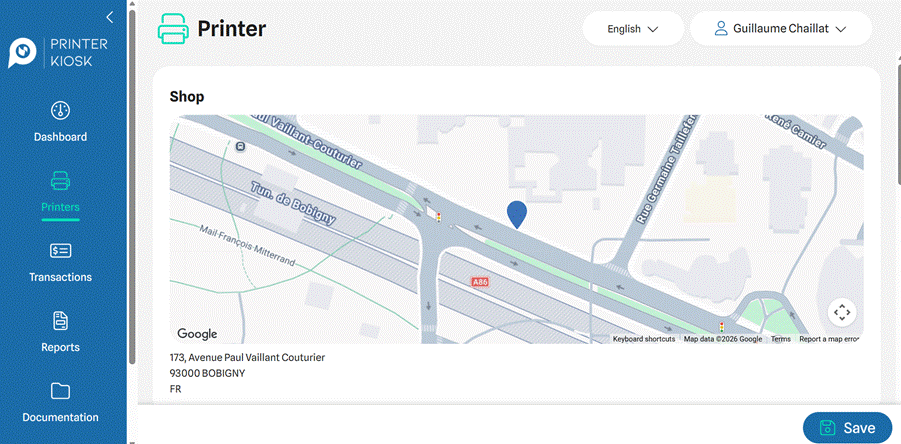
Map and address of the site
Map location (embedded Google Maps, with a movable pin) and full postal address of the installation site. A Save button at the bottom right confirms any address change.
3.3 Status and technical settings
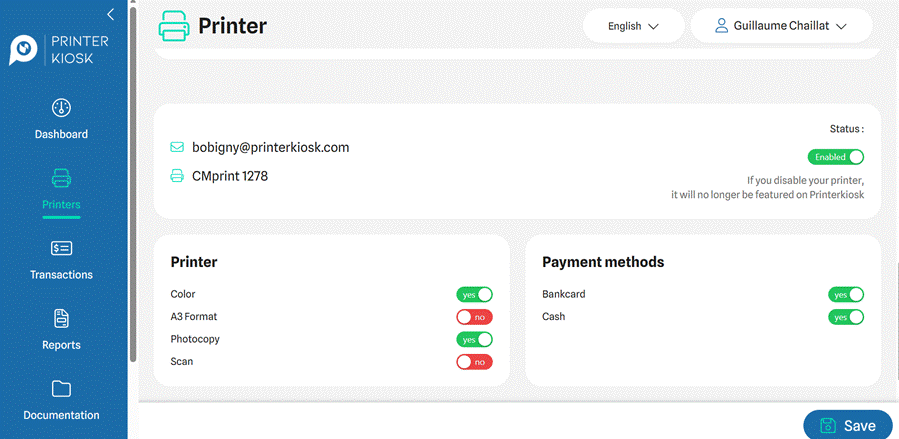
Status, capabilities and payment methods
Status block (top of the sheet):
- PrinterKiosk e-mail chosen by the operator and CMprint serial number of the device, shown for reference
“Printer” block (technical capabilities, yes/no):
- Color (color printing)
- A3 Format
- Photocopy
- Scan
“Payment methods” block (payment methods accepted by the device):
- Bankcard
- Cash
These two blocks are distinct from the global Status toggle: a device can be Enabled (publicly visible) while, for example, Scan is disabled if the function is not available on this model, or Cash payment is disabled if the site does not handle change.
3.4 Opening hours
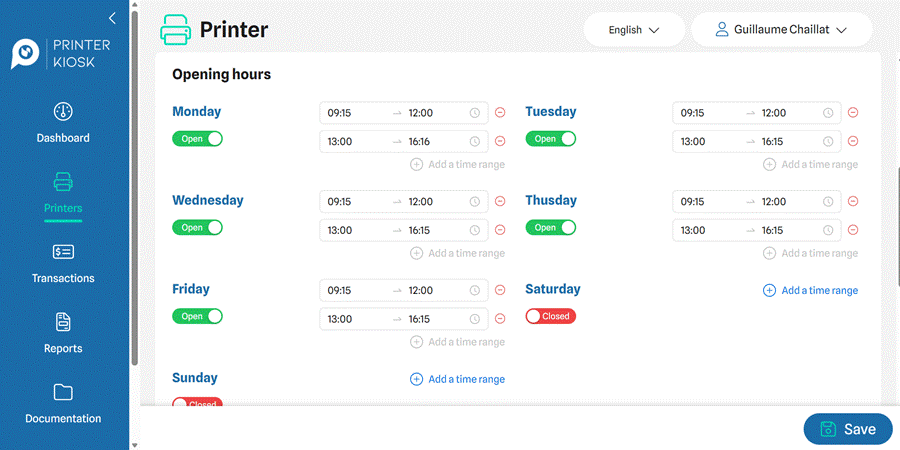
Opening hours
Day-by-day definition of Open/Closed slots, with the option to add several time ranges per day (“Add a time range” button, e.g. morning + afternoon). A fully closed day (e.g. Saturday, Sunday) simply shows the red Closed badge.
This information will appear on the PrinterKiosk user map.
3.5 Pricing grid
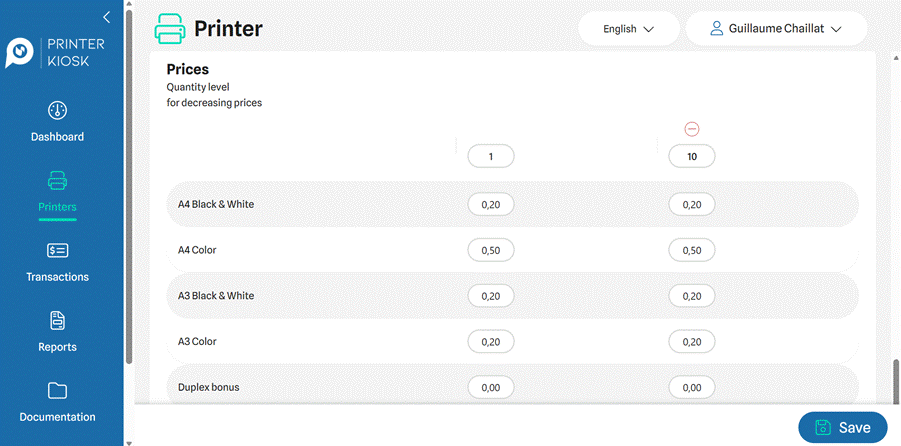
Pricing grid
Prices defined by format/color:
- A4 Black & White
- A4 Color
- A3 Black & White
- A3 Color
- Duplex bonus (discount applied for double-sided printing)
This information will appear on the PrinterKiosk user map.
4. Transactions
4.1 Transaction log
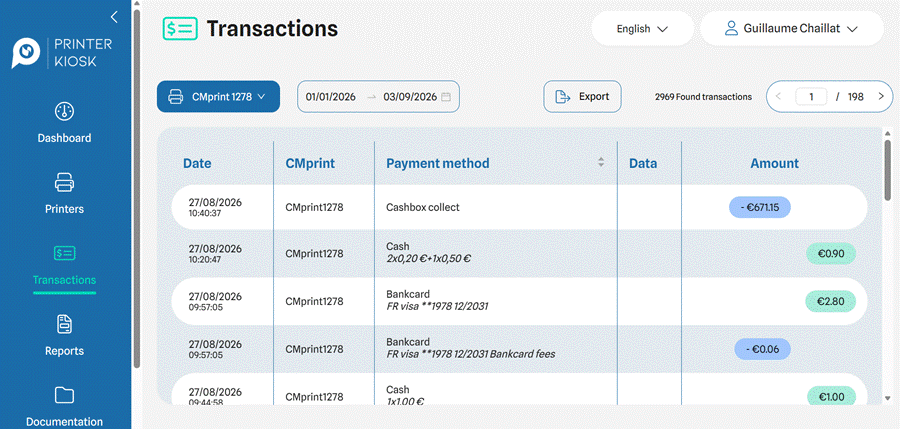
Transaction list
Detailed log of all financial movements for a device, filterable by CMprint and by date range.
Columns: Date, CMprint, Payment method, Data, Amount.
Types of lines found in the example:
- Cashbox collect: physical cashbox collection — negative amount as it comes out of the “In the cashbox” balance
- Cash: cash payment by a user, with the detail of the coins/notes inserted
- Bankcard: card payment by a user, with the card type and masked number
- Bankcard fees: line associated with each card transaction, corresponding to the bank fee deducted from that transaction (negative amount)
- Transferred to account: card payments transferred to the operator’s bank account
- Subscription fee: charges related to the PrinterKiosk subscription
The Export button allows the transaction detail for the displayed period to be downloaded.
4.2 Date selector
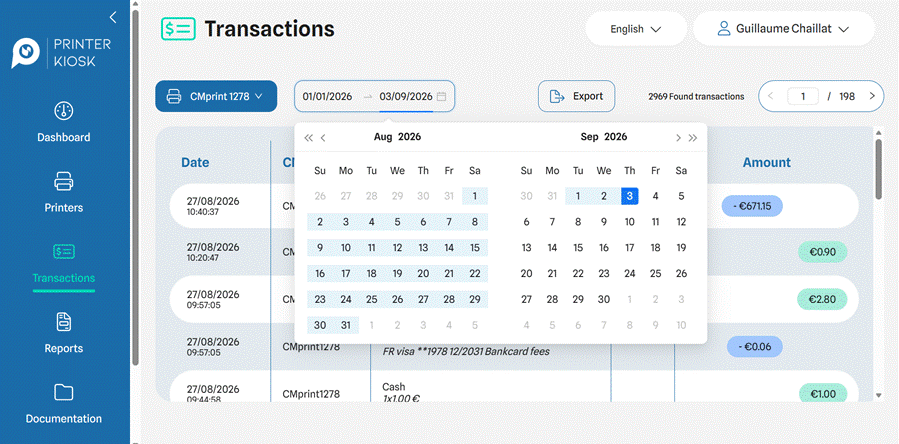
Date range selector
The date filter opens as a two-month calendar, with navigation via single arrows (previous/next month) or double arrows (previous/next year). The selected range is highlighted in light blue, with the range endpoints in solid blue.
5. Reports
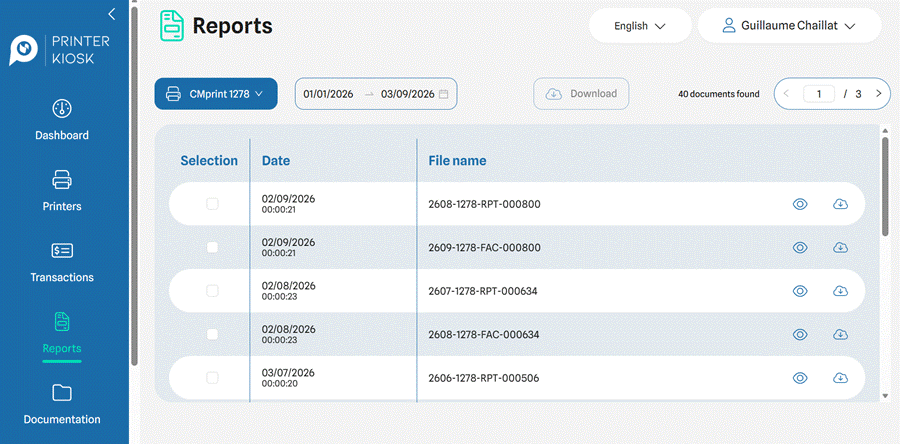
List of reports and invoices
Two families of documents coexist in this list, identifiable by the code in the file name:
- RPT = Report — periodic activity statement for the device
- FAC = Invoice
The Download button at the top (greyed out until a line is checked) allows the selected documents to be downloaded in bulk.
6. Interface language
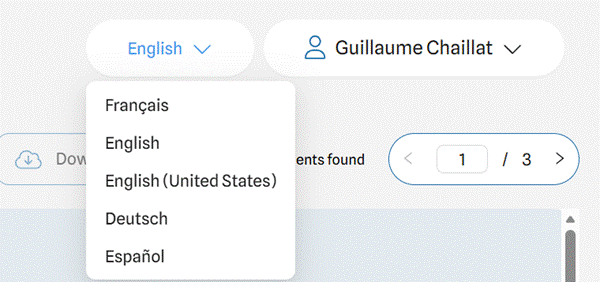
Language selector
The language selector at the top of the screen offers: Français, English, English (United States), Deutsch, Español. The change applies immediately to the whole interface (menus, labels, table headers, system messages).
7. My Account
7.1 Legal representative and site information
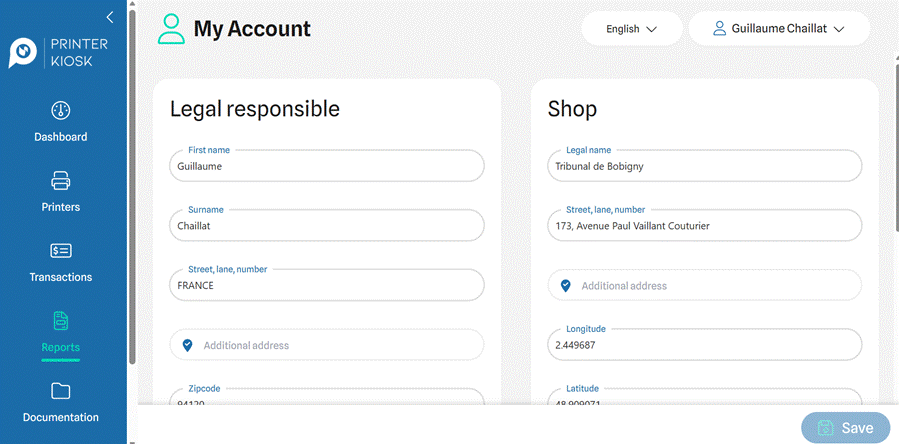
Legal information and site address
7.2 E-mail, password and contract
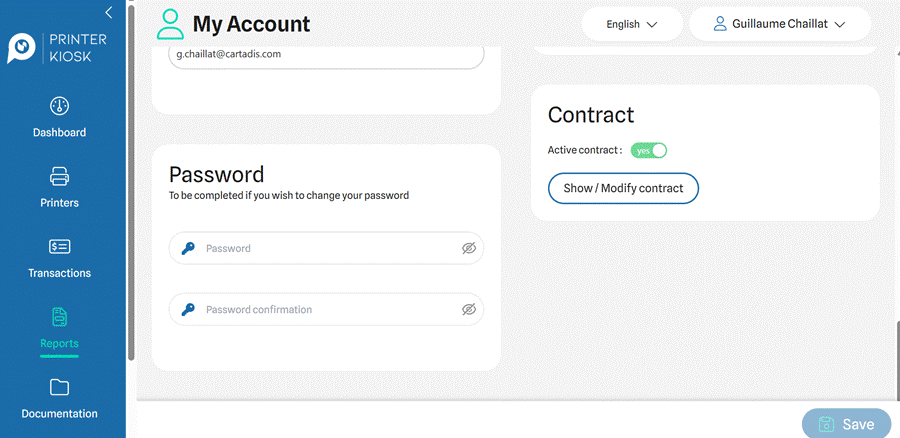
Active contract and password change
Password: password change (field + confirmation, blank by default, with an eye icon to show/hide the input)
Was this article helpful?
That’s Great!
Thank you for your feedback
Sorry! We couldn't be helpful
Thank you for your feedback
Feedback sent
We appreciate your effort and will try to fix the article